
前端实现对本地文件的IO操作
前言
在网页中,前端已经可以读取本地文件系统,对本地的文件进行IO读写,甚至可以制作一个简单的VScode编辑器。这篇文章以渐进式方式实现此功能,文末附上所有代码。
首先看整体功能演示
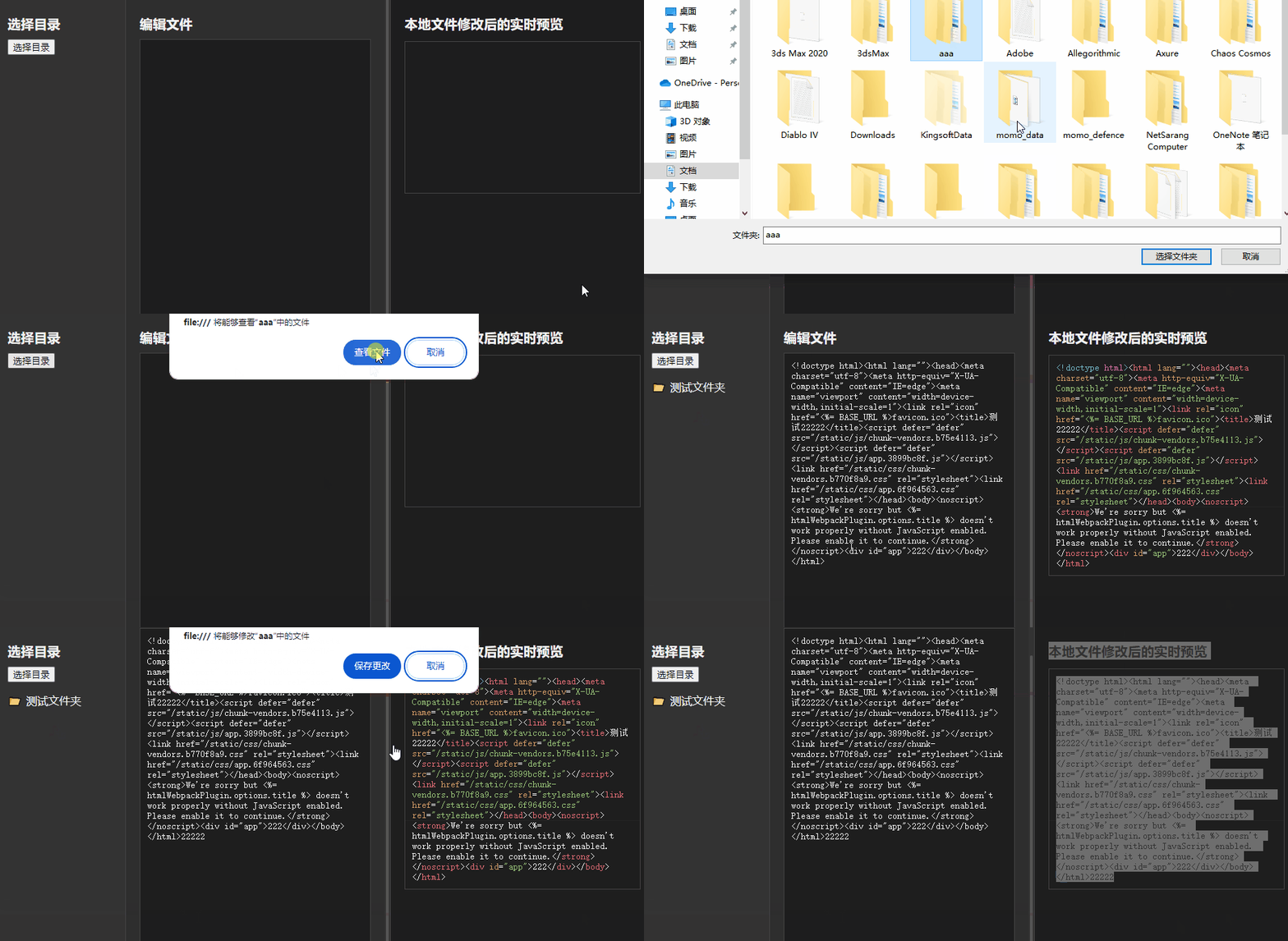
功能概述
我们将实现一个简单的 Web 应用,具备以下功能:
- 选择本地目录:用户可以选择本地目录并显示其结构。
- 文件浏览:用户可以浏览目录中的文件和子目录。
- 文件编辑:用户可以选择文件并在网页上进行编辑。
- 文件保存:用户可以将编辑后的文件保存到本地。
核心实现步骤
我们将功能拆分为以下几个核心步骤:
- 选择本地目录
- 构建文件树
- 读取和编辑文件
- 保存编辑后的文件
1. 选择本地目录
选择本地目录是实现这个功能的第一步。我们使用 File System Access API 的 showDirectoryPicker 方法来选择目录。
document.getElementById('selectDirectoryButton').addEventListener('click', async function() {
    try {
        const directoryHandle = await window.showDirectoryPicker();
        console.log(directoryHandle);  // 打印目录句柄
    } catch (error) {
        console.error('Error: ', error);
    }
});
2. 构建文件树
选择目录后,我们需要递归地构建文件树,并在页面上显示文件和子目录。
async function buildFileTree(directoryHandle, parentElement) {
    for await (const [name, entryHandle] of directoryHandle.entries()) {
        const li = document.createElement('li');
        li.textContent = name;
        if (entryHandle.kind === 'file') {
            li.classList.add('file');
            li.addEventListener('click', async function() {
                currentFileHandle = entryHandle;
                const file = await entryHandle.getFile();
                const fileContent = await file.text();
                document.getElementById('fileContent').textContent = fileContent;
                document.getElementById('editArea').value = fileContent;
                document.getElementById('editArea').style.display = 'block';
                document.getElementById('saveButton').style.display = 'block';
            });
        } else if (entryHandle.kind === 'directory') {
            li.classList.add('folder');
            const ul = document.createElement('ul');
            ul.style.display = 'none';
            li.appendChild(ul);
            li.addEventListener('click', function() {
                ul.style.display = ul.style.display === 'none' ? 'block' : 'none';
            });
            await buildFileTree(entryHandle, ul);
        }
        parentElement.appendChild(li);
    }
}
3. 读取和编辑文件
当用户点击文件时,我们读取文件内容,并在文本区域中显示以便编辑。
li.addEventListener('click', async function() {
    currentFileHandle = entryHandle;
    const file = await entryHandle.getFile();
    const fileContent = await file.text();
    document.getElementById('fileContent').textContent = fileContent;
    document.getElementById('editArea').value = fileContent;
    document.getElementById('editArea').style.display = 'block';
    document.getElementById('saveButton').style.display = 'block';
});
4. 保存编辑后的文件
编辑完成后,用户可以点击保存按钮将修改后的文件内容保存回本地文件。
document.getElementById('saveButton').addEventListener('click', async function() {
    if (currentFileHandle) {
        const editArea = document.getElementById('editArea');
        const updatedContent = editArea.value;
        // 创建一个 writable 流并写入编辑后的文件内容
        const writable = await currentFileHandle.createWritable();
        await writable.write(updatedContent);
        await writable.close();
        // 更新显示区域的内容
        document.getElementById('fileContent').textContent = updatedContent;
    }
});
核心 API 介绍
window.showDirectoryPicker()
该方法打开目录选择对话框,并返回一个 FileSystemDirectoryHandle 对象,代表用户选择的目录。
const directoryHandle = await window.showDirectoryPicker();
FileSystemDirectoryHandle.entries()
该方法返回一个异步迭代器,用于遍历目录中的所有文件和子目录。
for await (const [name, entryHandle] of directoryHandle.entries()) {
    // 处理每个文件或目录
}
FileSystemFileHandle.getFile()
该方法返回一个 File 对象,表示文件的内容。
const file = await fileHandle.getFile();
FileSystemFileHandle.createWritable()
该方法创建一个可写流,用于写入文件内容。
const writable = await fileHandle.createWritable();
await writable.write(content);
await writable.close();
总结
通过以上步骤,我们能够选择本地目录、浏览文件和子目录、读取和编辑文件内容,并将编辑后的文件保存回本地。同时,我们使用 Highlight.js 实现了代码高亮显示。
源码
    Local File Browser with Edit and Save


        body {
            font-family: 'Segoe UI', Tahoma, Geneva, Verdana, sans-serif;
            margin: 0;
            padding: 0;
            display: flex;
            height: 100vh;
            overflow: hidden;
            background-color: #2e2e2e;
            color: #f1f1f1;
        }
        #sidebar {
            width: 20%;
            background-color: #333;
            border-right: 1px solid #444;
            padding: 20px;
            box-sizing: border-box;
            overflow-y: auto;
        }
        #content {
            width: 40%;
            padding: 20px;
            box-sizing: border-box;
            overflow-y: auto;
        }
        #preview {
            width: 40%;
            padding: 20px;
            box-sizing: border-box;
            overflow-y: auto;
            background-color: #1e1e1e;
            border-left: 1px solid #444;
        }
        #fileTree {
            list-style-type: none;
            padding: 0;
        }
        #fileTree li {
            margin-bottom: 5px;
            cursor: pointer;
            user-select: none; /* 禁止文本选中 */
        }
        #fileTree .folder::before {
            content: "📂";
            margin-right: 5px;
        }
        #fileTree .file::before {
            content: "📄";
            margin-right: 5px;
        }
        #fileContent {
            white-space: pre-wrap; /* Preserve whitespace */
            background-color: #1e1e1e;
            padding: 10px;
            border: 1px solid #444;
            min-height: 200px;
            color: #f1f1f1;
        }
        #editArea {
            width: 100%;
            height: calc(100% - 40px);
            background-color: #1e1e1e;
            color: #f1f1f1;
            border: 1px solid #444;
            padding: 10px;
            box-sizing: border-box;
        }
        #saveButton {
            margin-top: 10px;
            background-color: #4caf50;
            color: white;
            border: none;
            padding: 10px 15px;
            cursor: pointer;
            border-radius: 5px;
        }
        #saveButton:hover {
            background-color: #45a049;
        }
        h1 {
            font-size: 1.2em;
            margin-bottom: 10px;
        }
        ::-webkit-scrollbar {
            width: 8px;
        }
        ::-webkit-scrollbar-track {
            background: #333;
        }
        ::-webkit-scrollbar-thumb {
            background-color: #555;
            border-radius: 10px;
            border: 2px solid #333;
        }
        .hidden {
            display: none;
        }


        选择目录
        选择目录
编辑文件
保存编辑后的文件内容本地文件修改后的实时预览
let currentFileHandle = null; document.getElementById('selectDirectoryButton').addEventListener('click', async function() { try { const directoryHandle = await window.showDirectoryPicker(); const fileTree = document.getElementById('fileTree'); fileTree.innerHTML = ''; // 清空文件树 async function buildFileTree(directoryHandle, parentElement) { for await (const [name, entryHandle] of directoryHandle.entries()) { const li = document.createElement('li'); li.textContent = name; if (entryHandle.kind === 'file') { li.classList.add('file'); li.addEventListener('click', async function() { currentFileHandle = entryHandle; const file = await entryHandle.getFile(); const fileContent = await file.text(); const fileExtension = name.split('.').pop(); const codeElement = document.getElementById('fileContent'); const editArea = document.getElementById('editArea'); codeElement.textContent = fileContent; editArea.value = fileContent; codeElement.className = ''; // 清除之前的语言类 codeElement.classList.add(getHighlightLanguage(fileExtension)); hljs.highlightElement(codeElement); // 显示编辑区域和保存按钮 editArea.style.display = 'block'; document.getElementById('saveButton').style.display = 'block'; }); } else if (entryHandle.kind === 'directory') { li.classList.add('folder'); const ul = document.createElement('ul'); ul.classList.add('hidden'); // 默认隐藏子目录 li.appendChild(ul); li.addEventListener('click', function(event) { event.stopPropagation(); // 阻止事件冒泡 ul.classList.toggle('hidden'); }); await buildFileTree(entryHandle, ul); } parentElement.appendChild(li); } } await buildFileTree(directoryHandle, fileTree); } catch (error) { console.log('Error: ', error); } }); // 获取代码高亮语言类型 function getHighlightLanguage(extension) { switch (extension) { case 'js': return 'javascript'; case 'html': return 'html'; case 'css': return 'css'; case 'json': return 'json'; case 'xml': return 'xml'; case 'py': return 'python'; case 'java': return 'java'; default: return 'plaintext'; } } // 保存编辑后的文件内容 document.getElementById('saveButton').addEventListener('click', async function() { if (currentFileHandle) { const editArea = document.getElementById('editArea'); const updatedContent = editArea.value; // 创建一个 writable 流并写入编辑后的文件内容 const writable = await currentFileHandle.createWritable(); await writable.write(updatedContent); await writable.close(); // 更新高亮显示区域的内容 const codeElement = document.getElementById('fileContent'); codeElement.textContent = updatedContent; hljs.highlightElement(codeElement); } }); // 初始化 highlight.js hljs.initHighlightingOnLoad();
免责声明:我们致力于保护作者版权,注重分享,被刊用文章因无法核实真实出处,未能及时与作者取得联系,或有版权异议的,请联系管理员,我们会立即处理! 部分文章是来自自研大数据AI进行生成,内容摘自(百度百科,百度知道,头条百科,中国民法典,刑法,牛津词典,新华词典,汉语词典,国家院校,科普平台)等数据,内容仅供学习参考,不准确地方联系删除处理! 图片声明:本站部分配图来自人工智能系统AI生成,觅知网授权图片,PxHere摄影无版权图库和百度,360,搜狗等多加搜索引擎自动关键词搜索配图,如有侵权的图片,请第一时间联系我们,邮箱:ciyunidc@ciyunshuju.com。本站只作为美观性配图使用,无任何非法侵犯第三方意图,一切解释权归图片著作权方,本站不承担任何责任。如有恶意碰瓷者,必当奉陪到底严惩不贷!


