
【鸿蒙学习笔记】通过用户首选项实现数据持久化
官方文档:通过用户首选项实现数据持久化
目录标题
- 使用场景
- 第1步:源码
- 第2步:启动模拟器
- 第3步:启动entry
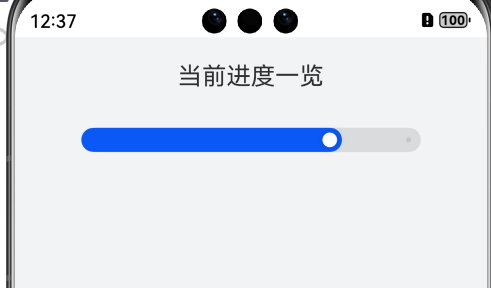
- 第6步:操作
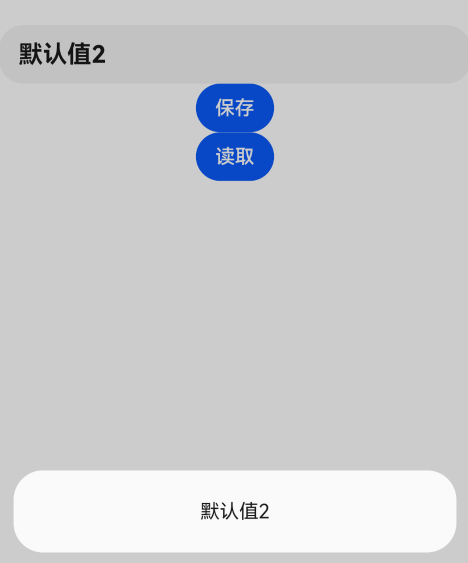
- 样例2
使用场景
- Preferences会将该数据缓存在内存中,当用户读取的时候,能够快速从内存中获取数据,当需要持久化时可以使用flush接口将内存中的数据写入持久化文件中。
- Preferences会随着存放的数据量越多而导致应用占用的内存越大,因此,Preferences不适合存放过多的数据,也不支持通过配置加密,适用的场景一般为应用保存用户的个性化设置(字体大小,是否开启夜间模式)等。
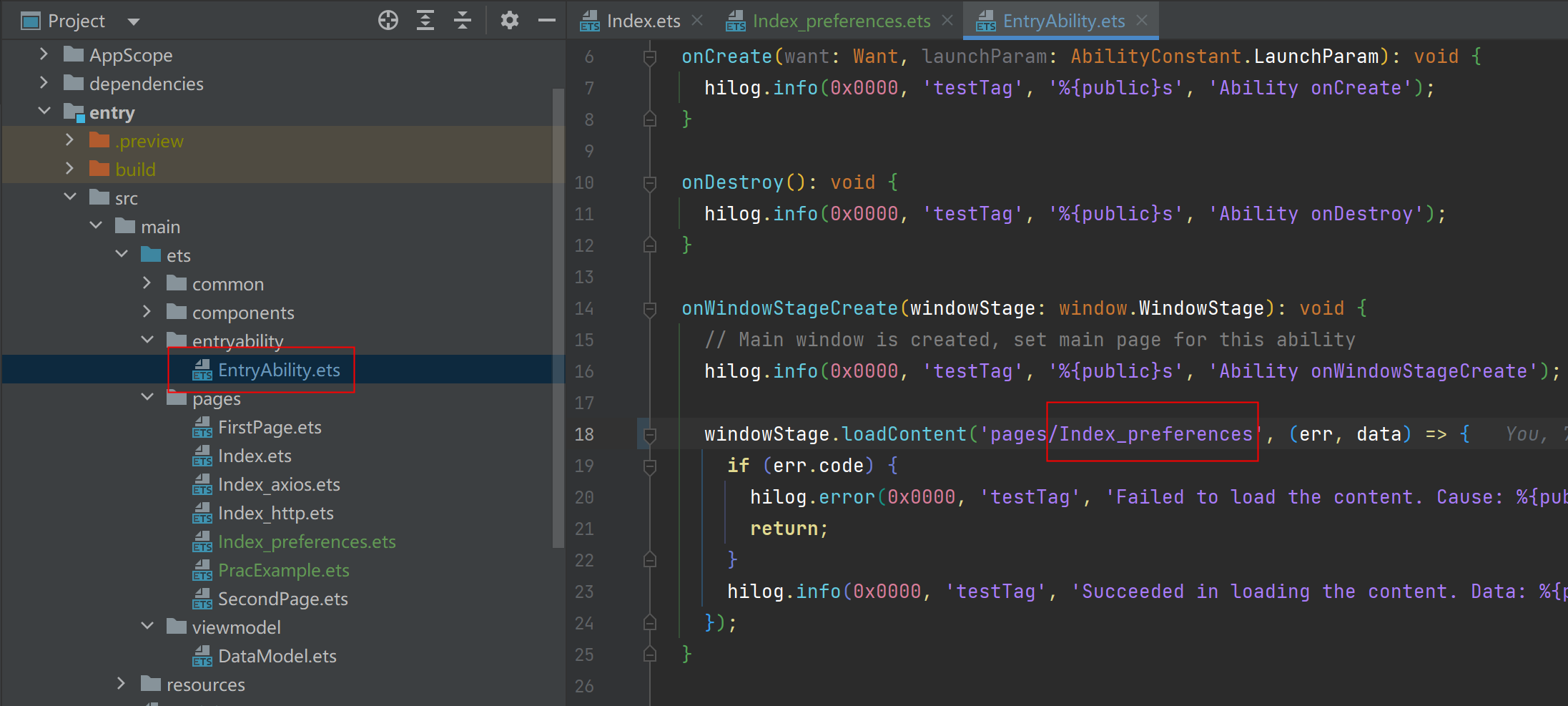
第1步:源码
import { common } from '@kit.AbilityKit';
import dataPreferences from '@ohos.data.preferences';
@Entry
@Component
struct Index {
  @State changeFontSize: number = 16;
  // 上下文
  private context: common.UIAbilityContext = getContext(this) as common.UIAbilityContext
  //1. 获取preference
  private preferencesInstance: dataPreferences.Preferences = dataPreferences.getPreferencesSync(this.context, { name: 'myStore' });
  aboutToAppear(): void {
    //4. 页面打开后,直接从preference中获取上一次的数据
    let result = this.preferencesInstance.getSync("fontSizeKey", 16)
    this.changeFontSize = Number(result)
  }
  build() {
    Column() {
      Row({ space: 10 }) {
        Text('当前进度一览').fontSize(this.changeFontSize)
      }.margin(20)
      Slider({
        value: this.changeFontSize,
        min: 14,
        max: 22,
        step: 2,
        style: SliderStyle.InSet
      })
        .showSteps(true)
        .width('75%')
        .onChange(async (value: number) => {
          this.changeFontSize = value
          //2. 保存数据
          this.preferencesInstance.putSync('fontSizeKey', this.changeFontSize);
          //3. 持久化数据
          this.preferencesInstance.flush()
        })
    }.backgroundColor('#f2f3f5').width('100%').height('100%')
  }
}
第2步:启动模拟器

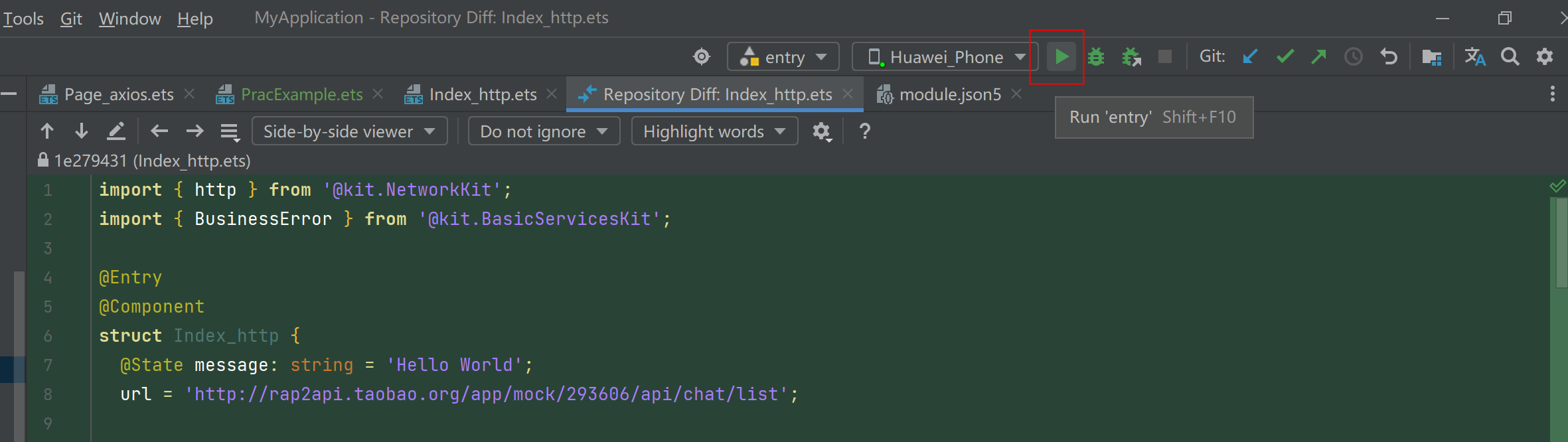
第3步:启动entry
第6步:操作
样例2
import dataPreferences from '@ohos.data.preferences';
import { common } from '@kit.AbilityKit';
@Entry
@Component
struct Index_preferences2 {
  @State message: string = 'Hello World';
  private context:common.UIAbilityContext = getContext(this) as common.UIAbilityContext
  private preferencesInstance: dataPreferences.Preferences =  dataPreferences.getPreferencesSync(this.context, { name: 'myStore' });
  aboutToAppear(): void {
    let result = this.preferencesInstance.getSync("messageKey","默认值1")
    this.message = String(result)
  }
  build() {
    Row() {
      Column() {
        TextInput({text:this.message}).fontSize(20).fontWeight(FontWeight.Bold)
          .onChange((value)=>{
            this.message = value
          })
        Button("保存")
          .onClick(()=>{
            this.preferencesInstance.putSync('message', this.message);
            this.preferencesInstance.flush()
            AlertDialog.show({message:"保存成功"})
          })
        Button("读取").onClick(() => {
          let result = this.preferencesInstance.getSync("messageKey","默认值2")
          this.message = String(result)//获取到的数据不是String,需要转换一下
          AlertDialog.show({message:this.message})
          console.log("test",result)
        })
      }
      .width('100%')
    }
    .height('100%')
  }
}
免责声明:我们致力于保护作者版权,注重分享,被刊用文章因无法核实真实出处,未能及时与作者取得联系,或有版权异议的,请联系管理员,我们会立即处理! 部分文章是来自自研大数据AI进行生成,内容摘自(百度百科,百度知道,头条百科,中国民法典,刑法,牛津词典,新华词典,汉语词典,国家院校,科普平台)等数据,内容仅供学习参考,不准确地方联系删除处理! 图片声明:本站部分配图来自人工智能系统AI生成,觅知网授权图片,PxHere摄影无版权图库和百度,360,搜狗等多加搜索引擎自动关键词搜索配图,如有侵权的图片,请第一时间联系我们,邮箱:ciyunidc@ciyunshuju.com。本站只作为美观性配图使用,无任何非法侵犯第三方意图,一切解释权归图片著作权方,本站不承担任何责任。如有恶意碰瓷者,必当奉陪到底严惩不贷!


