
vscode里配置C#环境并运行.cs文件
温馨提示:这篇文章已超过444天没有更新,请注意相关的内容是否还可用!
vscode是一款跨平台、轻量级、开源的IDE, 支持C、C++、Java、C#、R、Python、Go、Nodejs等多种语言的开发和调试。下面介绍在vscode里配置C#环境。这里以配置.Net SDK v5.0,语言版本为C#9.0,对应的开发平台为VS2019,作为案例说明。
1、下载vscode
vscode每3个月就有一次版本更新,而且分为Linux、Mac、Window这个平台版本,这里只介绍Window平台版本的下载。
vscode官网: https://code.visualstudio.com/download
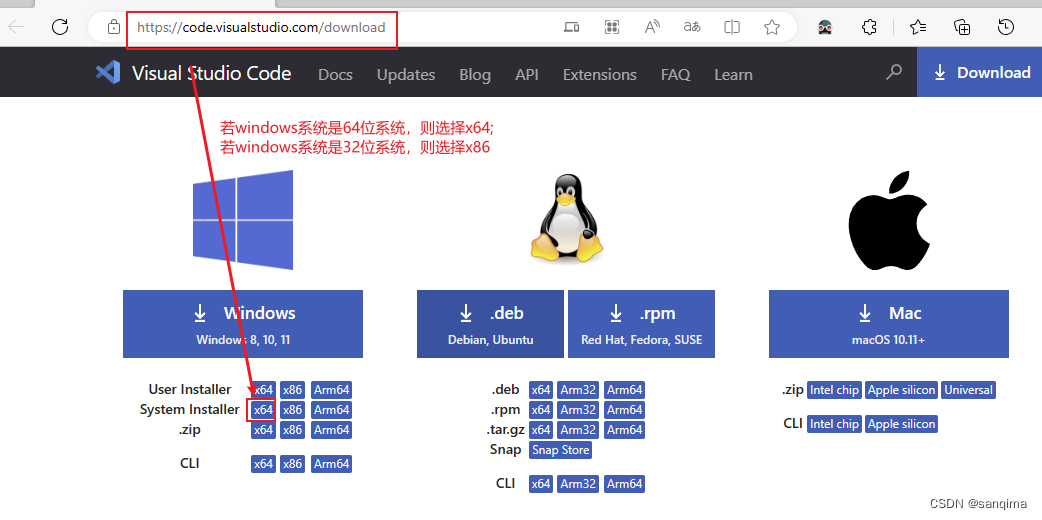 图(1) 下载vscode
下载vscode后,双击该安装包,一路默认,直到安装完成。
2、下载.Net SDK v5.0
C#语言从2002年2月开始发布的,最初版本是v1.0,接着2003年是C# 1.1,2005年是C# 2.0,2007年是C# 3.0, 2010年是C# 4.0, 2012年是C# 5.0,…,到2022年C#的版本发展到了v11, C#的更新换代非常快,如下表所示:
| IDE | C#版本 | .Net Framework版本 | .Net Core版本 | 特性 |
|---|---|---|---|---|
| Visual Studio 2002 | C# 1.0 | .NET Framework 1.0 | 无 | 委托和事件 |
| Visual Studio 2003 | C# 1.1 | .NET Framework 1.2 | 无 | APM(异步编程模型) |
| Visual Studio 2005 | C# 2.0 | .NET Framework 2.0 | 无 | 泛型、匿名方法、迭代器、可空类型 |
| Visual Studio 2008 | C# 3.0 | .NET Framework 3.0 | 无 | 隐式类型 |
| Visual Studio 2008 | C# 3.0 | .NET Framework 3.5 | 无 | lambda表达式,自动实现属性,对象集合初始化,匿名方法,扩展方法,LINQ |
| Visual Studio 2010 | C# 4.0 | .NET Framework 4.0 | 无 | 动态绑定,命名和可选参数,泛型的协变和逆变 |
| Visual Studio 2012 | C# 5.0 | .NET Framework 4.5 | 无 | 异步和等待,调用方信息 |
| Visual Studio 2013 | C# 5.0 | .NET Framework 4.5 | 无 | 异步和等待,调用方信息 |
| Visual Studio 2015 | C# 6.0 | .NET Framework 4.6 | .Net Core 1.0 | C#静态导入,异常筛选器,Null传播器,nameof预算符 |
| Visual Studio 2017 | C# 7.0/7.1/7.2/7.3 | .NET Framework 4.6.2/4.7/4.7.1/4.7.2 | .Net Core 2.0/2.1/2.2 | C#模式匹配,元组和析构函数,ref局部变量 |
| Visual Studio 2019 | C# 8.0 | .NET Framework 4.8 | .Net Core 3.0/3.1 | C#异步流,ReadOnly成员,非托管构造类型 |
| Visual Studio 2019 | C# 9.0 | .NET Framework 4.8 | .Net Core 5.0 | C#函数指针,static匿名函数,协变返回类型 |
| Visual Studio 2022 | C# 10.0 | .NET Framework 4.8 | .Net Core 6.0 | C#扩展属性模式,记录结构,密封ToString() |
| Visual Studio 2022 | C# 11 | .NET Framework 4.8 | .Net Core 6.0 | C# UTF-8支持,列表模式,数值IntPtr |
本文由于要与Visual Studio 2019配套,所以下载.Net SDK v5.0版本,地址为: https://dotnet.microsoft.com/zh-cn/download/dotnet,右击".Net 5.0",在新页面里找到SDK 5.0.214版本,选择 Windows X64版本,下载即可,如图(2)、图(3)所示:
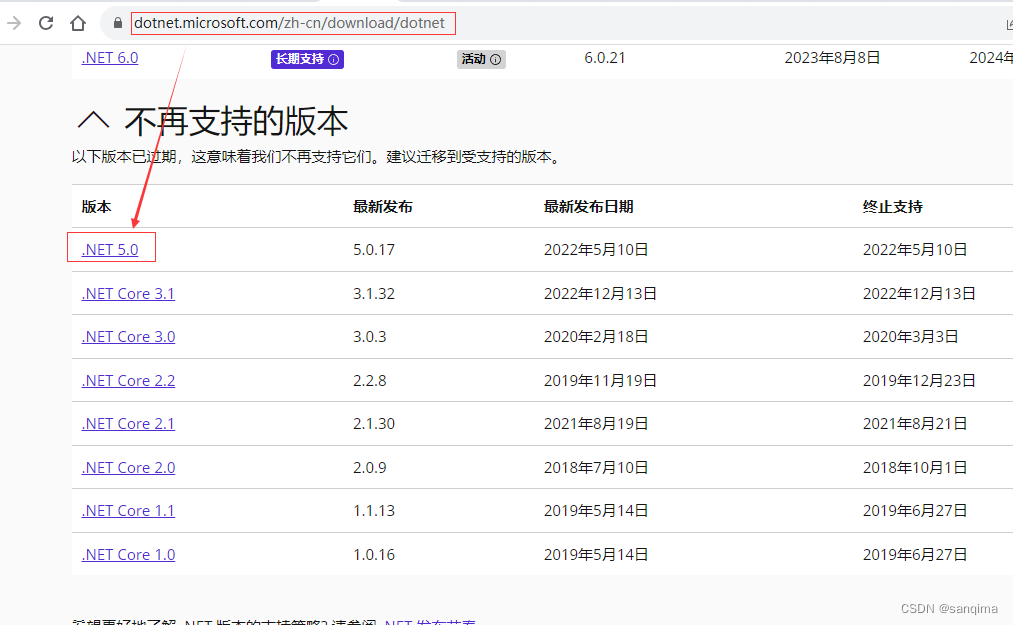 图(2) 选择.Net 5.0版本
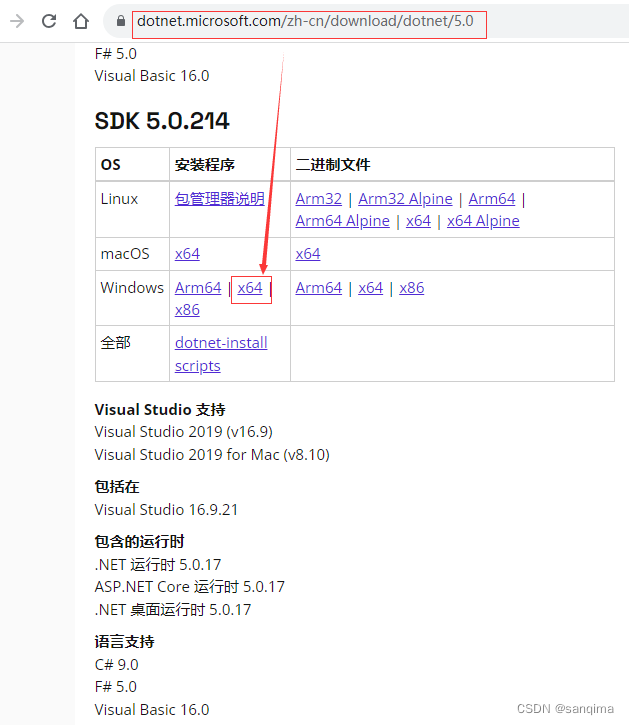 图(3) 选择 Windows X64版本进行下载
3、安装插件
打开vscode软件,点击vscode左侧的田字图标,安装三个插件:code runner、.Net Install Tool for Extension Authors、C#, 分别如图(4)、图(5)、图(6)所示:
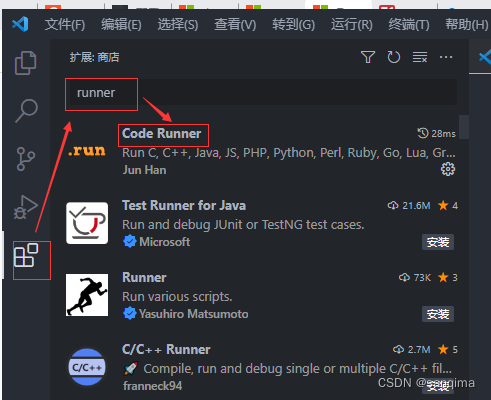 图(4) 安装Code Runner插件
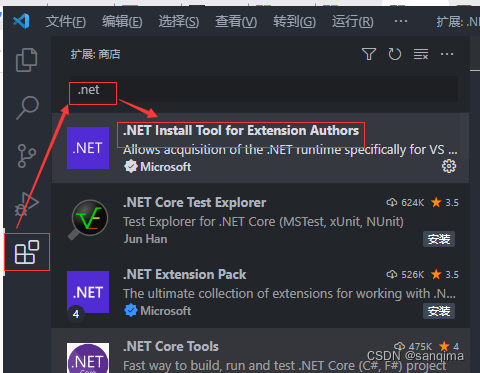 图(5) 安装.Net Install Tool for Extensioni Authors插件
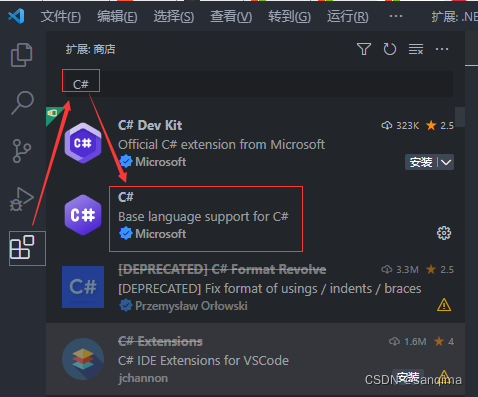 图(6) 安装C#插件
4、配置插件
设置Code Runner插件里的.cs文件的编译方式,点击vscode左侧的田字图标 --》 输入: runner --》找到Code Runner --》右击齿轮图标 --》扩展设置 --》找到 executor Map --》在settings.json中编辑,如图(7)、图(8)所示:
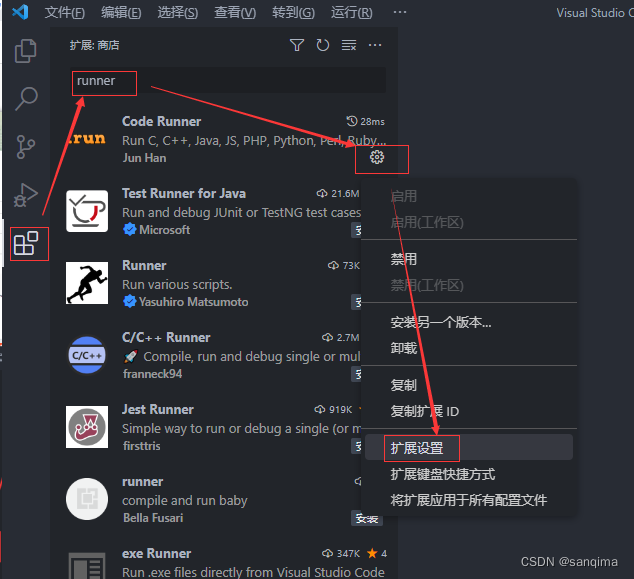 图(7) 点击田字 --》输入: runner ---》找到Code Runner
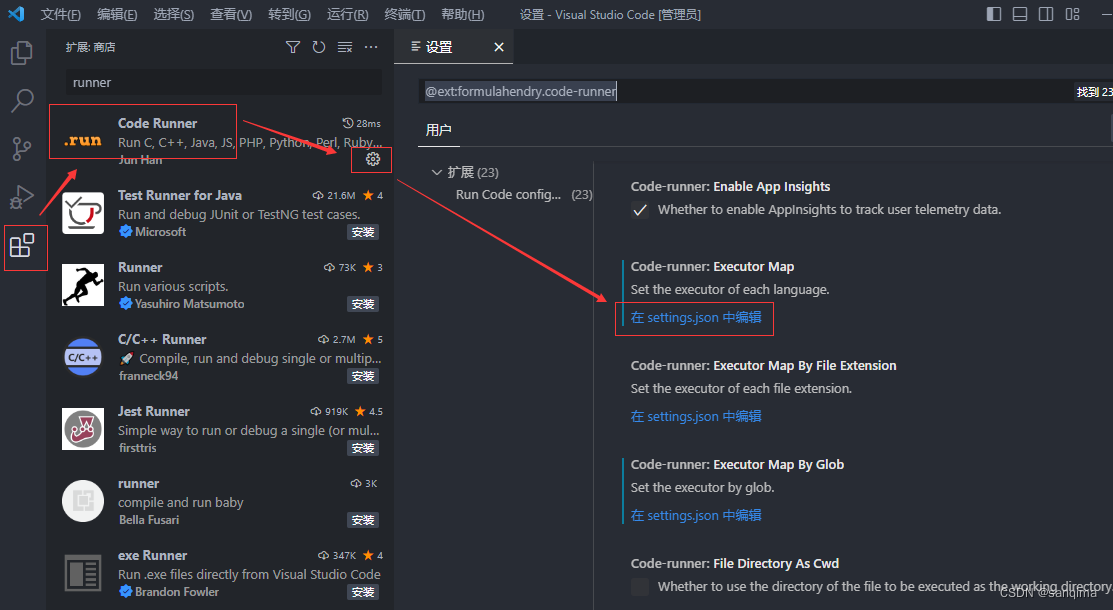 图(8) 找到 Executor Map
Code Runner插件的的settings.json 的全部配置如下:
{
    "workbench.colorTheme": "One Dark Modern",
    "go.gopath": "D:\\Ide\\GoProject",
    "go.goroot": "D:\\Ide\\Go",
    "code-runner.languageIdToFileExtensionMap": {
        "bat": ".bat",
        "powershell": ".ps1",
        "typescript": ".ts"
    },
    "code-runner.executorMap": {
        "javascript": "node",
        "java": "cd $dir && javac $fileName && java $fileNameWithoutExt",
        "c": "cd $dir && gcc $fileName -o $fileNameWithoutExt && $dir$fileNameWithoutExt",
        "zig": "zig run",
        "cpp": "cd $dir && g++ -std=c++11 $fileName -o $fileNameWithoutExt && $dir$fileNameWithoutExt",
        "objective-c": "cd $dir && gcc -framework Cocoa $fileName -o $fileNameWithoutExt && $dir$fileNameWithoutExt",
        "php": "php",
        "python": "python -u",
        "perl": "perl",
        "perl6": "perl6",
        "ruby": "ruby",
        "go": "go run",
        "lua": "lua",
        "groovy": "groovy",
        "powershell": "powershell -ExecutionPolicy ByPass -File",
        "bat": "cmd /c",
        "shellscript": "bash",
        "fsharp": "fsi",
        "csharp": "cd $dir && dotnet run",
        "vbscript": "cscript //Nologo",
        "typescript": "ts-node",
        "coffeescript": "coffee",
        "scala": "scala",
        "swift": "swift",
        "julia": "julia",
        "crystal": "crystal",
        "ocaml": "ocaml",
        "r": "Rscript",
        "applescript": "osascript",
        "clojure": "lein exec",
        "haxe": "haxe --cwd $dirWithoutTrailingSlash --run $fileNameWithoutExt",
        "rust": "cd $dir && rustc $fileName && $dir$fileNameWithoutExt",
        "racket": "racket",
        "scheme": "csi -script",
        "ahk": "autohotkey",
        "autoit": "autoit3",
        "dart": "dart",
        "pascal": "cd $dir && fpc $fileName && $dir$fileNameWithoutExt",
        "d": "cd $dir && dmd $fileName && $dir$fileNameWithoutExt",
        "haskell": "runghc",
        "nim": "nim compile --verbosity:0 --hints:off --run",
        "lisp": "sbcl --script",
        "kit": "kitc --run",
        "v": "v run",
        "sass": "sass --style expanded",
        "scss": "scss --style expanded",
        "less": "cd $dir && lessc $fileName $fileNameWithoutExt.css",
        "FortranFreeForm": "cd $dir && gfortran $fileName -o $fileNameWithoutExt && $dir$fileNameWithoutExt",
        "fortran-modern": "cd $dir && gfortran $fileName -o $fileNameWithoutExt && $dir$fileNameWithoutExt",
        "fortran_fixed-form": "cd $dir && gfortran $fileName -o $fileNameWithoutExt && $dir$fileNameWithoutExt",
        "fortran": "cd $dir && gfortran $fileName -o $fileNameWithoutExt && $dir$fileNameWithoutExt",
        "sml": "cd $dir && sml $fileName"
    },
    "C_Cpp.default.intelliSenseMode": "windows-gcc-x64",
    "workbench.editor.languageDetectionHints": {
        "notebookEditors": false
    },
    "C_Cpp.default.compilerArgs": [
        "-std=c++11"
    ],
    "C_Cpp.default.compilerPath": "",
    "code-runner.executorMapByGlob": {
        "pom.xml": "cd $dir && mvn clean package"
    }
}
C# 全称为c sharp,则在settings.json里的配置如下:
"code-runner.executorMap": {
	"csharp": "cd $dir && dotnet run",
},
5、创建工程HelloCsharp
打开vscode软件,点击vscode菜单栏里的【终端】–》新建终端 --》输入: cmd,切换到cmd模式 --》创建一个C#控制台工程: HelloCsharp的命令为:
dotnet new console -n HelloCsharp
进入HelloCsharp工程目录
cd HelloCsharp
编译C#工程,并运行.cs文件
dotnet run
如图(9)所示:
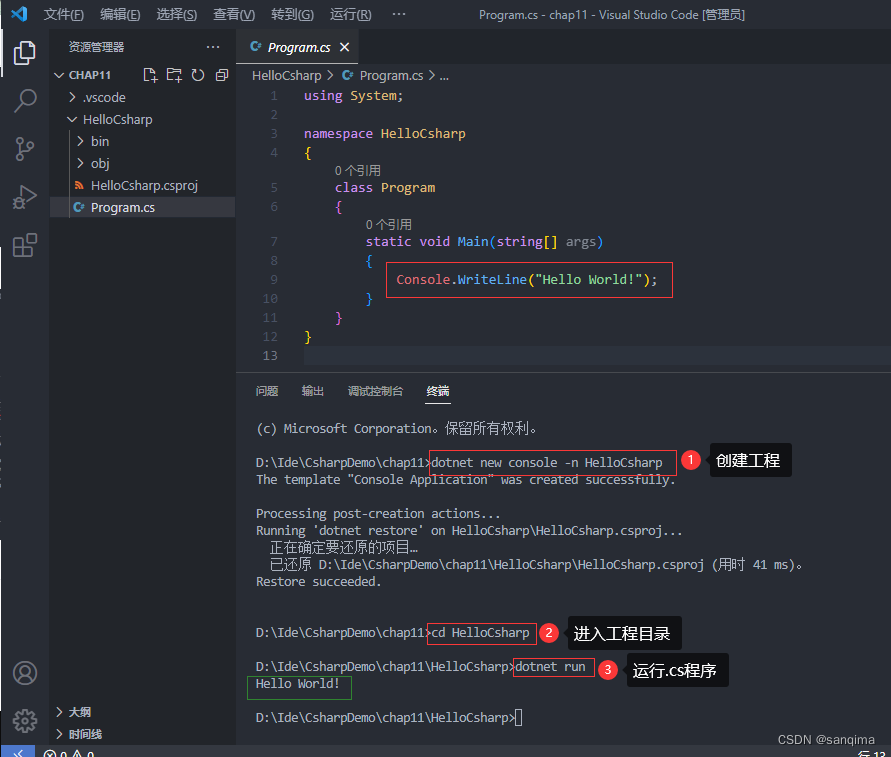 图(9)创建C#程序,并编译运行
参考文献
- [1] C#语言版本发展历史.microsoft.learn
- [2].Net版本发展历史.microsoft.learn
- [3] C#历史简介.wikepedia


